 CallPal
Connect CallPal to Nimble
Sync your Nimble people and companies into CallPal, call them from the browser, and have every call written back to the record it came from. Setup takes about five minutes.
Deciding whether to use it at all? What the Nimble integration does.
Before you start
- A CallPal account. The 14-day trial is enough — no card required, and the integration is available on every plan.
- A Nimble account with API access, so you can generate a token.
- In CallPal, permission to manage integrations. Owners and admins have it by default.
Generate an API token in Nimble
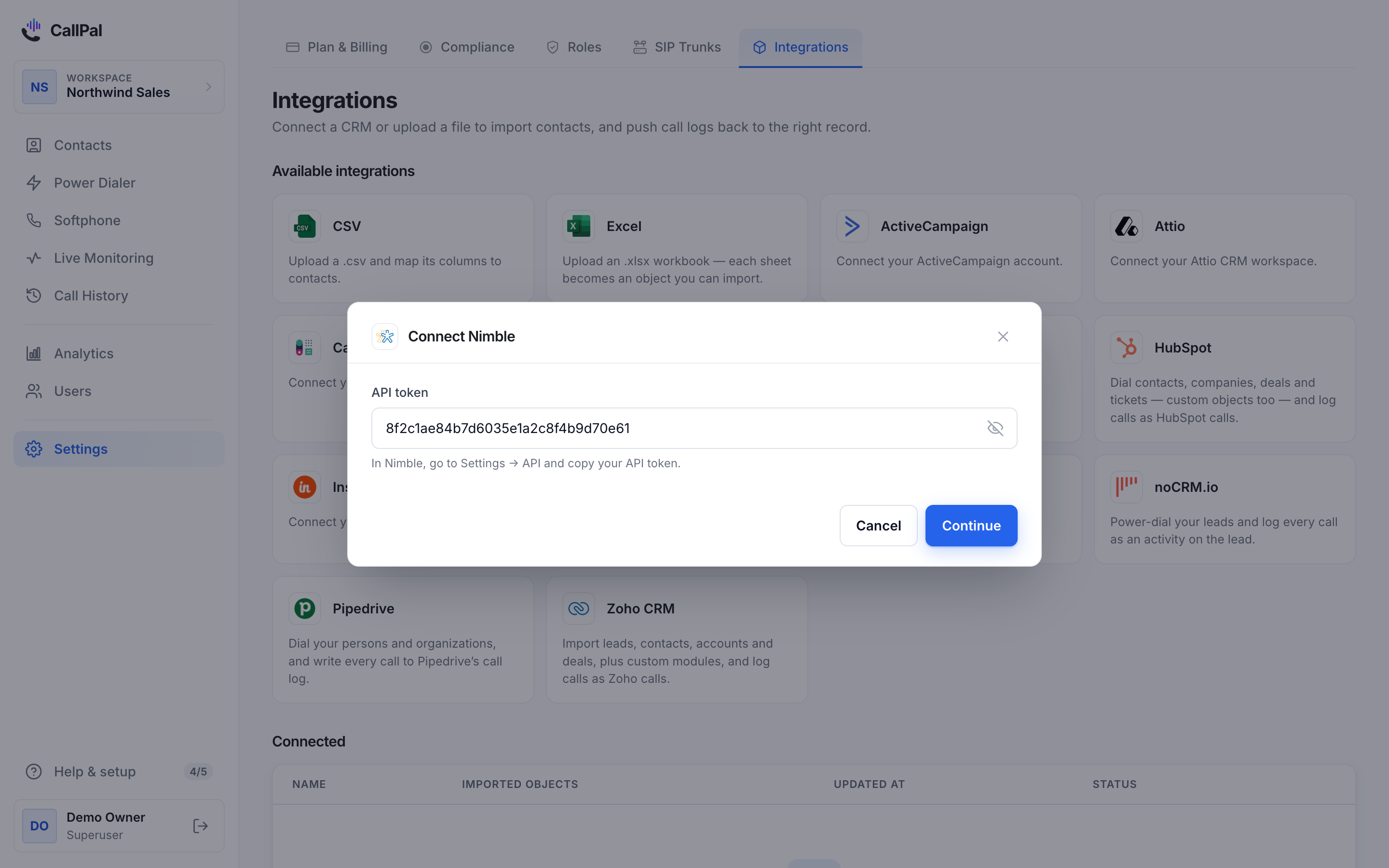
In Nimble, open Settings → Integrations → API and generate a token. That single value is all CallPal needs — there is no separate account URL or user email to find.
Treat it like a password. Anyone holding it can read and write everything your Nimble account can.
API token a1b2c3d4e5f6...
Add the connection in CallPal
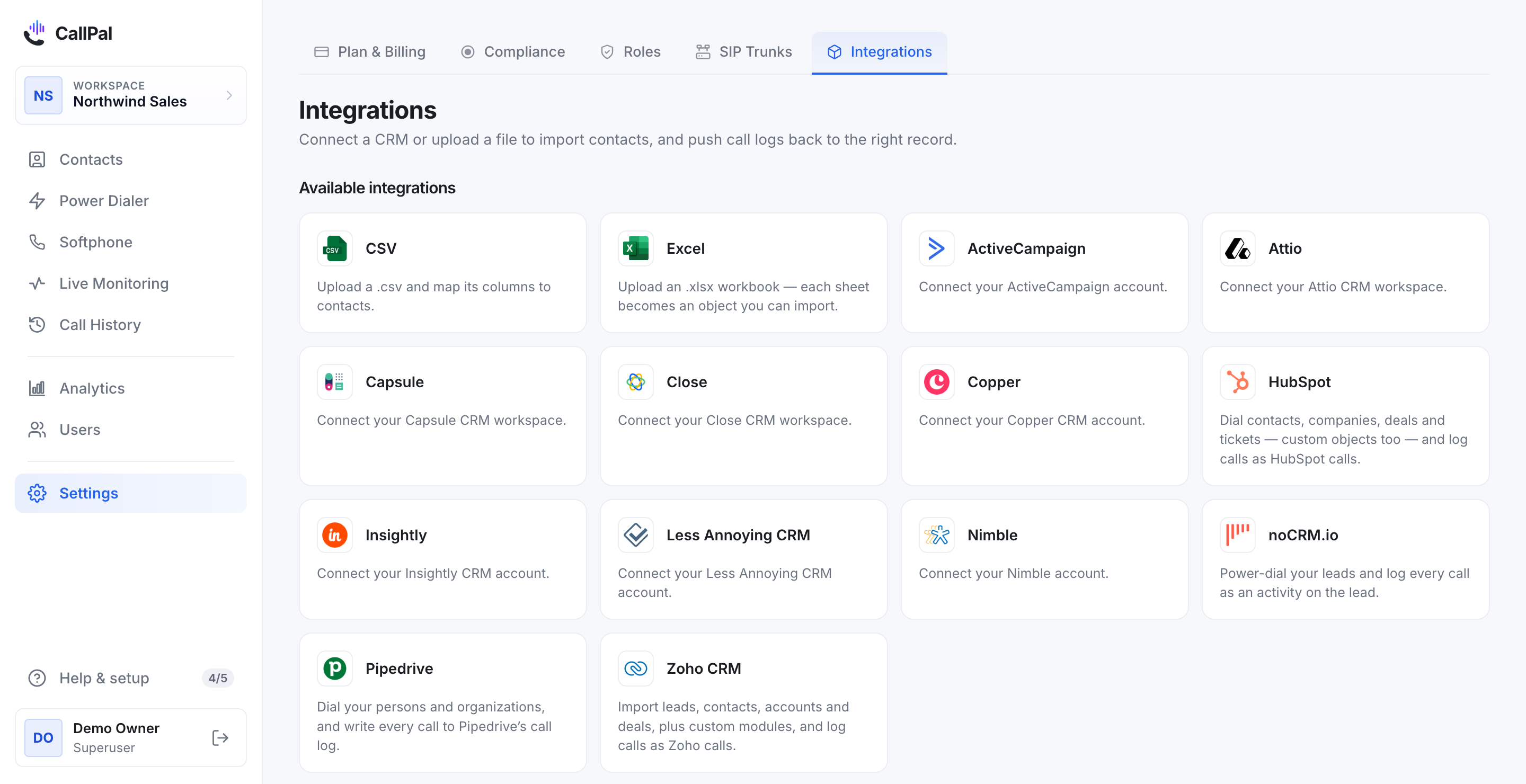
In CallPal, go to Settings → Integrations, find Nimble, and select it.
Paste the token and save. CallPal checks it against your account immediately — if it is wrong you find out now rather than at the first sync.
Choose what to import
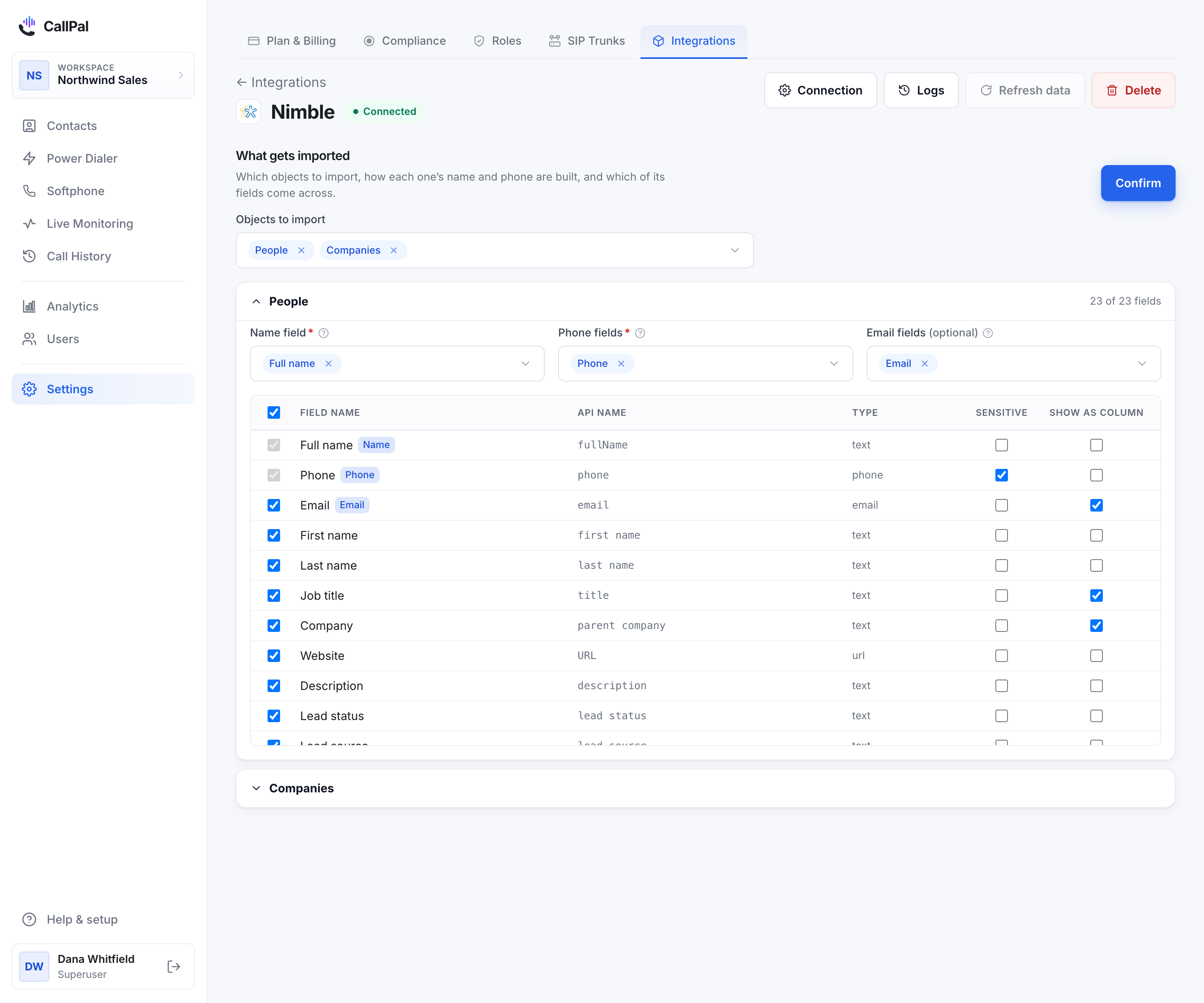
People is selected for you and is what most teams want. Companies is available if your reps call organisations rather than named individuals.
Nimble carries an unusually wide set of fields per person — the mapping step below is worth more attention here than on a leaner CRM.
Check the field mapping
CallPal maps the standard fields for you — name, phone numbers, email and company. Review it and adjust anything your team uses differently.
Nimble stores several numbers per person, each with its own type. The phone mapping is where you decide which ones your reps should reach, and in what order.
Run the first sync
Start the sync. Records appear as they arrive, so a large Nimble account fills in progressively rather than showing nothing until it finishes.
After that CallPal re-syncs every 30 minutes, and you can trigger one by hand from the connection page.
Make a call
Open any synced record and select the phone number, or add records to a power-dialer campaign to work a list.
When the call ends, CallPal writes it back to the Nimble record as a note carrying the direction, duration, outcome and a link to the recording.
What syncs
- Nimble → CallPal
- People, and optionally Companies. Standard and custom fields alike, read from your own account.
- Calls → Nimble
- Every completed call is written to the matching record as a note: direction, duration, outcome, start time, whether a recording exists, and a link back to the call in CallPal.
What it does not do
Worth reading before you roll this out to a team — these are design decisions, not gaps we are about to close.
- Calls are logged as notes, because Nimble has no native call-activity object to write to. The first line of every note is a stable marker, so they are straightforward to search and filter.
- CallPal reads your records and does not edit them. It never changes a field and never creates a contact.
- Nimble’s social and email features are untouched. CallPal is the calling half only.
- CallPal is outbound only. No inbound routing, no IVR, no predictive dialing.
Questions
Where do I find my Nimble API token?
Settings → Integrations → API in Nimble. Generate a token there; it is the only value CallPal needs.
Is there an OAuth option?
Not for this integration. Nimble connects with an API token, which is encrypted at rest in CallPal and can be revoked from Nimble at any time.
How are calls recorded in Nimble?
As a note on the matching record, with direction, duration, outcome and a link back to the call in CallPal. Nimble has no native call object, so a note is the honest place for it.
How often does it sync?
Every 30 minutes by default, and you can trigger a sync manually from the connection page at any time.
Which phone number does it call from?
Your own. CallPal is bring-your-own-carrier: you connect your own SIP trunk, calls are billed by your carrier at your rate, and outbound calls present your company number rather than a rep’s personal line.
What happens if I revoke the token?
The sync stops and the connection shows an error on the integrations page. Reconnect with a new token to resume. Records already synced into CallPal stay there.
Still stuck?
Write to [email protected] with your account name and what you saw. A person answers.