 CallPal

Power dialer and click-to-call for Copper
Connect Copper in one click and call your people, companies and leads straight from CallPal, with every call logged as a real Copper Phone Call activity that counts in your reporting.
- Connect in one click
- Real Phone Call activities
- Only what changed re-syncs
What you can do with Copper and CallPal
Calls logged as Phone Call activities
CallPal writes to Copper’s own Phone Call activity, so calls show up in the activity feed and count wherever Copper counts calls, not as a note someone has to read to understand.
The three kinds of record that carry numbers
People, companies and leads come across with every number, email and custom field — the records Copper actually keeps phones on. Pipeline records point at them, so the person behind a deal is already on your list.
Custom fields you can actually read
Copper stores your custom fields and dropdown choices as internal IDs. CallPal turns them back into the labels you gave them, so a column reads “Enterprise” and not a string of digits.
You always know where a call lands
Every call is written to the person, company or lead you dialled, and the app shows you where it will land before you place it.
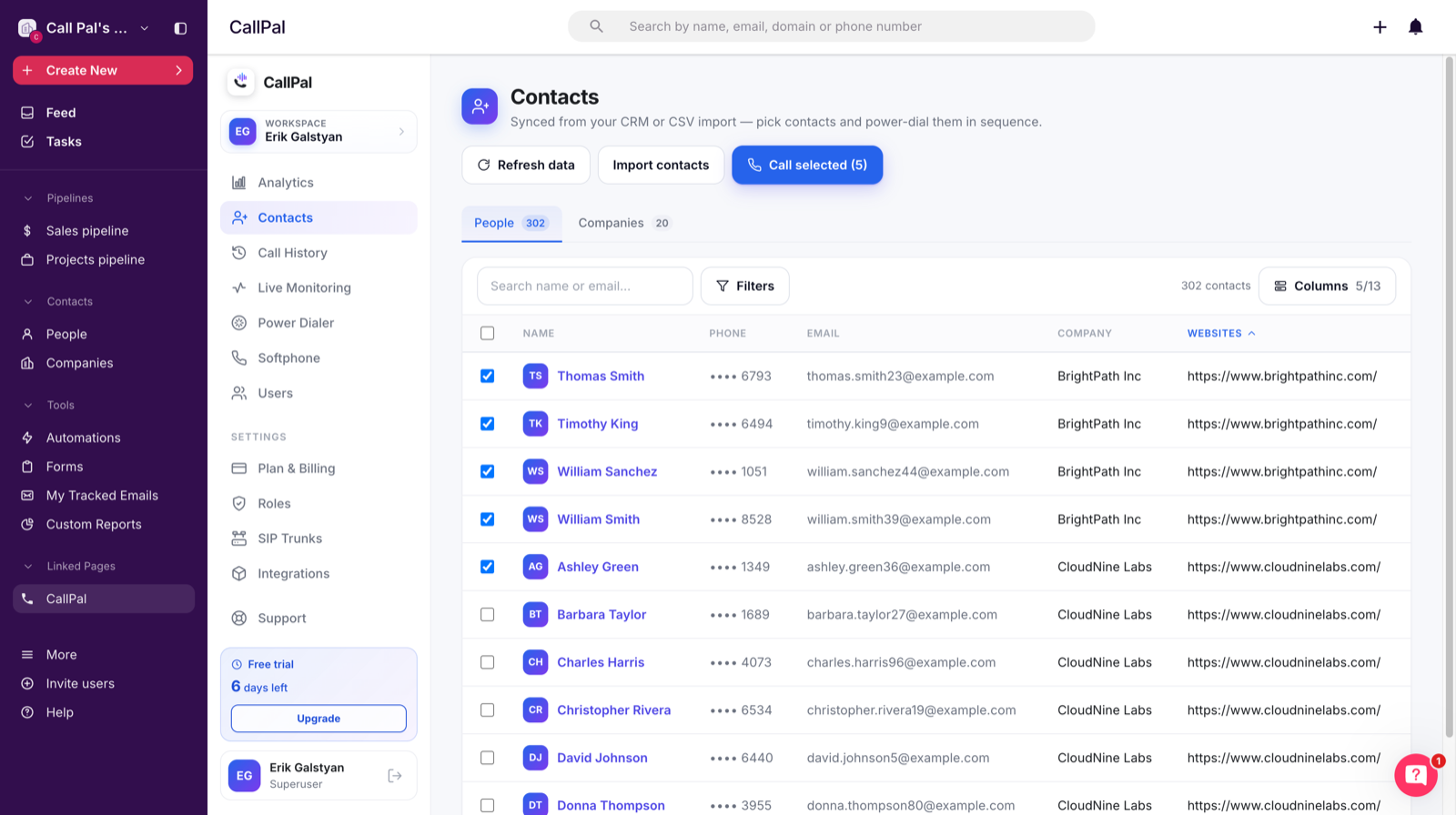
The Copper objects CallPal supports
Three kinds of record come across, and every one of them you can dial. Here is what CallPal does with each — and why the rest stay in Copper.
- People
- Full name, phone numbers, emails, job title, company, websites, city, country, tags and owner. The default calling list.
- Companies
- Company name, phone numbers, email domain, websites, address and details. Copper company records hold an email domain instead of individual addresses, so CallPal doesn’t offer a column that would always be empty.
- Leads
- Lead name, phone numbers, emails, company, status and job title.
- Pipeline records
- Not imported. A Copper pipeline record — a revenue opportunity, or the non-revenue kind teams use to run projects — carries no phone of its own; the person or company it hangs off does, and both are above.
- Tasks
- Not imported — a task has no phone at all. Calls are recorded on the three objects above.
Every object CallPal imports comes across with your custom fields, shown as the labels you gave them.
Why call from Copper with CallPal
Copper lives inside Google Workspace, which is exactly where a sales team already spends its day, and exactly why the phone tends to get left out of the picture. CallPal adds the calling without pulling anyone into a fourth tab.
What stands out here is the reach. Five kinds of Copper record carry a number your team can call, so you can build a list around an open project or a deal at a particular stage instead of working alphabetically through contacts. And because your custom fields come across as the labels you gave them, you can filter that list the same way you would inside Copper.
Connecting is one click — approve CallPal in Copper and the import starts; there is no key to create, copy or store. And CallPal reads at a deliberately steady pace, well inside what Copper allows, so a big import never uses up the capacity your other Copper tools depend on.
How to connect Copper
- Step 01
Connect with Copper
Settings → Integrations → Copper, then Continue. Copper asks you to approve what CallPal is requesting, and that is the whole step — no key to create, copy or store.
- Step 02
Choose what to import
Pick people, companies or leads and the fields worth keeping. CallPal suggests the name and phone mapping; confirm and the first import runs.
- Step 03
Dial, and let the calls write themselves back
Click-to-call from any record, or power-dial a list. Each finished call posts to Copper as a Phone Call activity on the record you dialled.
Ready to set it up? The full Copper setup guide, step by step with screenshots.
The Copper integration at a glance
- How you connect
- One click, approved in Copper
- What imports
- People, Companies and Leads, each with your custom fields
- Where calls appear
- As a Copper Phone Call activity
- How often it updates
- Every 30 minutes, and only what changed
- Getting back to Copper
- Every kind of record opens in Copper
- Your own fields
- Custom fields come across as their labels, not IDs
What people ask about Copper
Do I need to create an API key?
No. CallPal connects to Copper over OAuth — press Continue, approve CallPal in Copper, and the connection is live. There is no key to create or paste, and revoking access is done from Copper itself.
Do calls count in Copper reporting?
Yes. CallPal logs a real Copper Phone Call activity and not a note, so calls appear in the activity feed and in your reports.
Can I call the people behind my opportunities?
Yes — through the people themselves. A Copper pipeline record, whether it is a revenue opportunity or the non-revenue kind used for projects, keeps no phone of its own; the person or company it hangs off holds the number, and both import as calling lists.
How do I connect Copper?
One click. In CallPal, open Settings → Integrations → Copper and press Continue; Copper shows what CallPal is asking for and you approve it. That is everything the integration on this page needs.
Other integrations
Calling, recording and reporting work the same way whichever of these you bring, and you can connect more than one.


Start calling from your CRM today.
Sign up, connect your phone provider, and make your first call. Your own CRM, your own data.
- All core features, up to 5 people
- No card, nothing to cancel
- Your CRM, your phone provider
Or write to us at [email protected].